

Everyone agrees collections follow-up matters. Almost nobody has time to do it well.
Someone pulls the aging report, works down the list, digs up the original invoice, attaches it, and writes the message. Then does it again for the next customer. It's the kind of work that gets pushed to Friday, then to next week, while balances quietly get older.
This post walks through a real workflow our team built in AI Automation that handles that entire job on top of Macola data: it finds past-due invoices, generates a copy of each invoice, has AI write a personalized reminder, and emails it to the customer. Nobody has to remember to do any of it. If you want to automate past-due invoice reminders without adding a separate collections system, this is what it looks like.
Why invoice reminders slip
The manual version of this process has more steps than it looks like from the outside:
- Run the aging report and sort invoices into 30, 60, and 90+ day buckets
- Write a reminder for each customer
- Find the original invoice and export a copy
- Attach the invoice and send the email
- Repeat for every customer, every cycle
None of those steps is hard. The problem is that every one of them depends on someone making time for it, every cycle, for every customer. When the month gets busy, follow-up is the first thing to slide, and the longer an invoice waits, the harder it is to collect.
That's exactly the kind of work a workflow should own: the same steps every time, started by a clear condition, with nothing that needs a person unless you want one.
What the automated workflow does
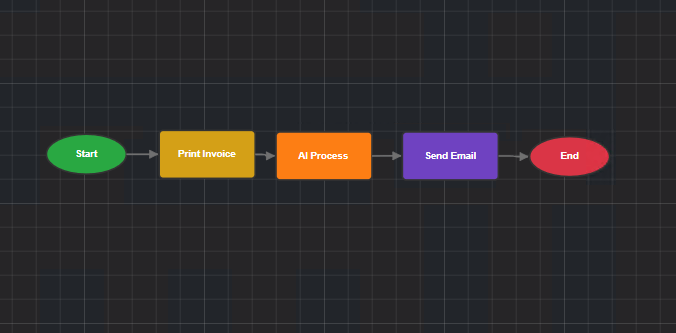
Here's the workflow step by step. It's the first of three use cases on our Macola workflow automation page, and it's built entirely in AI Automation, with no code involved.
1. It watches Macola for past-due invoices
The workflow keeps an eye on your Macola data for invoices that have crossed a past-due threshold, and groups them into stages: 30 to 60 days, 60 to 90 days, and over 90. Nobody has to remember to run the report; the workflow picks up past-due invoices on its own.
2. It generates a copy of the original invoice
For each invoice, the workflow runs your existing Crystal Report to produce a copy of the invoice, in the same format your customers already recognize.
3. AI writes a personalized reminder
Instead of a fill-in-the-blanks template, an AI step receives the invoice details, including the customer name, invoice number, sales order number, due date, amount, and days past due, along with instructions you've written for each stage. It then writes a complete email for that specific customer and invoice.
4. The customer gets a personalized email with the invoice attached
The finished email goes out with the invoice copy attached. Every run is logged step by step in the workflow's run history, so if someone asks whether a customer was contacted, the answer is one click away.
You decide what the emails say
The AI doesn't decide how to treat your customers. You do. It follows instructions written in plain language, the same way you'd brief a new AR clerk. One small touch in our team's version: the wording gets firmer as an invoice gets older. The instructions look like this:
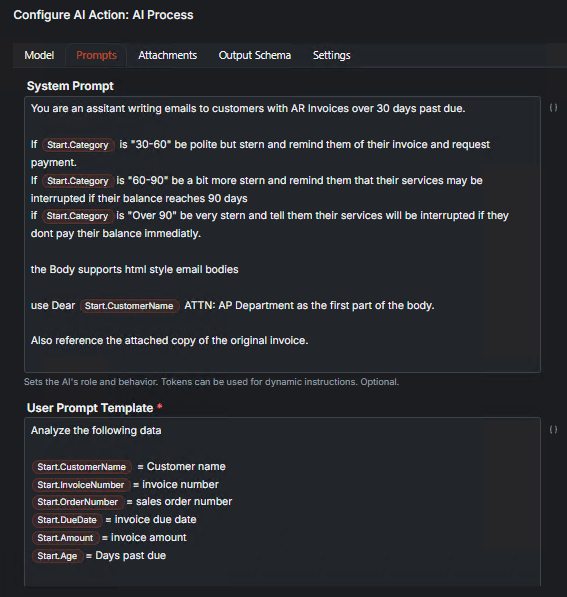
In plain terms, the instructions say:
- 30 to 60 days: be polite but firm, remind them of the invoice, and request payment.
- 60 to 90 days: be firmer, and remind them that services may be interrupted if the balance reaches 90 days.
- Over 90 days: be direct, and state that services will be interrupted if the balance isn't paid.
- Every email: open with "Dear [customer name], ATTN: AP Department," and reference the attached copy of the original invoice.
You can make those instructions say whatever fits your business. Softer at every stage for long-standing accounts, a mention of your payment portal, a specific person to contact, a particular sign-off. Change the instructions and the next run follows them, with no rebuilding required.
The result is an email that reads like a person wrote it for that customer, while staying consistent with the policy you set.
Should someone review each email before it sends?
In the workflow our team built, no one reviews the emails. That's deliberate: the whole point is that a well-written set of instructions handles the routine follow-up on its own, and your AR team spends their time on the conversations that actually need a person.
If you'd rather keep a person in the loop, AI Automation makes that easy. You can add an approval step before the email goes out, and the workflow pauses until someone approves it. You can also be selective: add a condition so only certain invoices wait for review, such as large balances or key accounts, while the rest send automatically. Many teams start with review turned on and remove it once they trust the results.
Why run this on Macola instead of a separate AR tool?
There are plenty of dedicated accounts receivable tools that send automated reminders. Many are built around the ERP and accounting platforms with the biggest install bases; one of the most visible, for example, lists native connections to NetSuite, Sage Intacct, QuickBooks, and Xero. If Macola isn't on a tool's list, that usually means exporting data into a second system and keeping the two in sync.
Running the workflow alongside Macola avoids that:
- Your data stays where it is. The workflow reads your Macola data directly, so there's no second system of record to maintain.
- Your invoice format stays the same. It uses your existing Crystal Report, so customers see the invoice they already know.
- It's one of many workflows, not a single-purpose tool. The same platform can turn PO emails into Macola sales orders or route credit holds to an approver. If you're weighing the bigger picture, AI for Macola covers everything Agility Intelligence does alongside Macola.
What it takes to set up
The work splits cleanly between the people who own the process and the person who builds it.
Your AR or finance team decides:
- Which stages you want, and what each one should say
- Who the email comes from, and where replies should go
- Which customers or invoices should be left out, such as disputed invoices or accounts on a payment plan
- Whether any invoices should wait for a person's approval
An IT staff member or power user who knows your Macola data builds it:
- The check that finds past-due invoices in Macola
- The connection to your Crystal Report invoice
- The email account the reminders send from
- The AI instructions, based on what AR decided
If you're not sure whether this should be your first automation, run it through the five questions in our checklist, Which Macola Processes Should You Automate First? Collections follow-up tends to score well: it happens the same way every time, it starts with a clear condition, and it's exactly the kind of work that slips when things get busy.
See it with your own invoices
If collections follow-up is eating your team's week, talk to us about automation. We'll walk through what this workflow would look like on your Macola data, with your invoice format and your wording.
FAQ Section
Q: How do I automate past-due invoice reminders in Macola? A: With AI Automation, a workflow watches your Macola data for invoices that are 30, 60, or 90+ days past due, generates a copy of each invoice from your Crystal Report, has AI write a personalized reminder email, and sends it to the customer with the invoice attached.
Q: Can we control what the reminder emails say? A: Yes. You write plain-language instructions, including what to mention and how to sign off, and the AI writes each email to match using that customer's name, invoice number, amount, and days past due. You can even have the wording get firmer as an invoice ages.
Q: Does someone need to approve each reminder before it sends? A: No, but you can add an approval step if you want one. You can also require approval only for certain invoices, such as large balances or key accounts, while the rest send automatically.
Q: Do we need a separate accounts receivable system? A: No. The workflow runs on your existing Macola data and uses your existing Crystal Report invoice, so there's no second system to keep in sync.
Q: Do we need a developer to set this up? A: No. AI Automation is no-code. Your AR team decides which invoices to follow up on and what the emails say, and an IT staff member or power user who knows your Macola data builds the workflow on a visual canvas.
Comments