
Macola AP Voucher Automation: Match Invoices to POs and Receipts
Design. Trigger. Run.
With AI Automation, a vendor invoice is read, matched to the purchase orders and receivers in Macola, checked by AI, approved by a person, and vouchered, without anyone keying it in by hand.
Watch the workflow run, start to finish.
Let Invoices Match Themselves
AP shouldn't spend the day comparing invoices to POs and receipts.
- Every invoice is checked by hand against the PO and the receipt
- Someone hunts for each receiver, including items received in more than one pass
- Price or quantity mismatches slip through, or stall payment
- The voucher is keyed into Macola line by line
- Invoices pile up at month-end and vendors call asking why
- The workflow picks up each vendor invoice from a mailbox or folder
- AI Interpreter reads it, and the workflow matches every line to its PO and receivers in Macola
- An AI review flags anything that doesn't add up
- A person approves with the invoice and matched lines side by side
- The batch and voucher are created in Macola, and the original sender gets a confirmation
Your AP team stops matching and starts approving.
How the Invoice-to-Voucher Workflow Runs
Design it once. It starts when the invoice arrives, and a person steps in only for the decision.
The Invoice Arrives
The workflow watches a mailbox or a folder. A vendor invoice lands there and the run starts on its own.
AI Interpreter Reads It
The invoice's header and lines are pulled out of the document, so nothing is retyped. See how AI Interpreter reads documents →
It Finds the POs and Receivers
The workflow looks up the matching purchase orders and every receipt in Macola, then lines them up with the invoice.
AI Reviews the Match
An AI step checks the matched lines and adds a note to anything that doesn't add up, like a unit of measure that doesn't line up.
A Person Approves
An approval task shows the invoice beside the matched lines. Approve it, edit a quantity or price, or reject it with a reason.
The Voucher Is Created
On approval, the batch and voucher are created in Macola against each receiver, and the original sender is emailed a confirmation. Every run is logged.
One Invoice, Many Receivers
A single invoice line is often received in more than one pass. When an item needs inspection and only part of the quantity is released first, Macola ends up with several receivers for the same purchase order line.
- In our demo, an invoice line for 12 units was received as 5, then 7
- The workflow found both receivers and vouchered the line against each one
- Across the demo invoice, eight lines on four POs matched to nine receivers
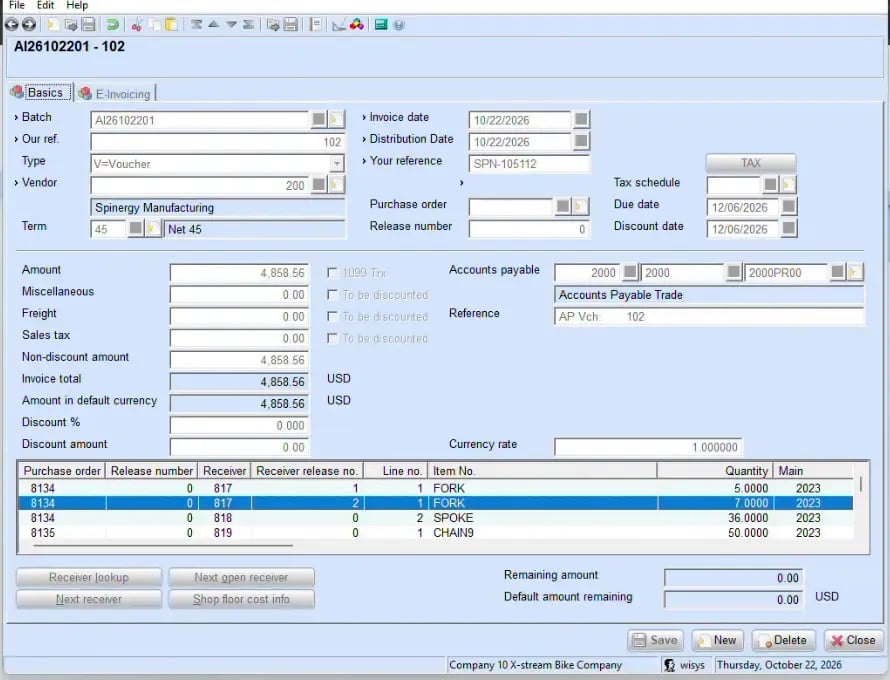
The voucher the workflow created in Macola. Demo data.
You Approve Before Anything Is Vouchered
In this workflow, every invoice comes to a person first. The task puts the invoice on one side and the matched lines on the other, so a quick look is enough to confirm the match.
- The AI review adds a note to any line that needs a second look
- Edit a quantity or price if you don't want to pay what was invoiced
- Reject with a reason, and a rejection email goes out
- Every response is recorded with who gave it and when
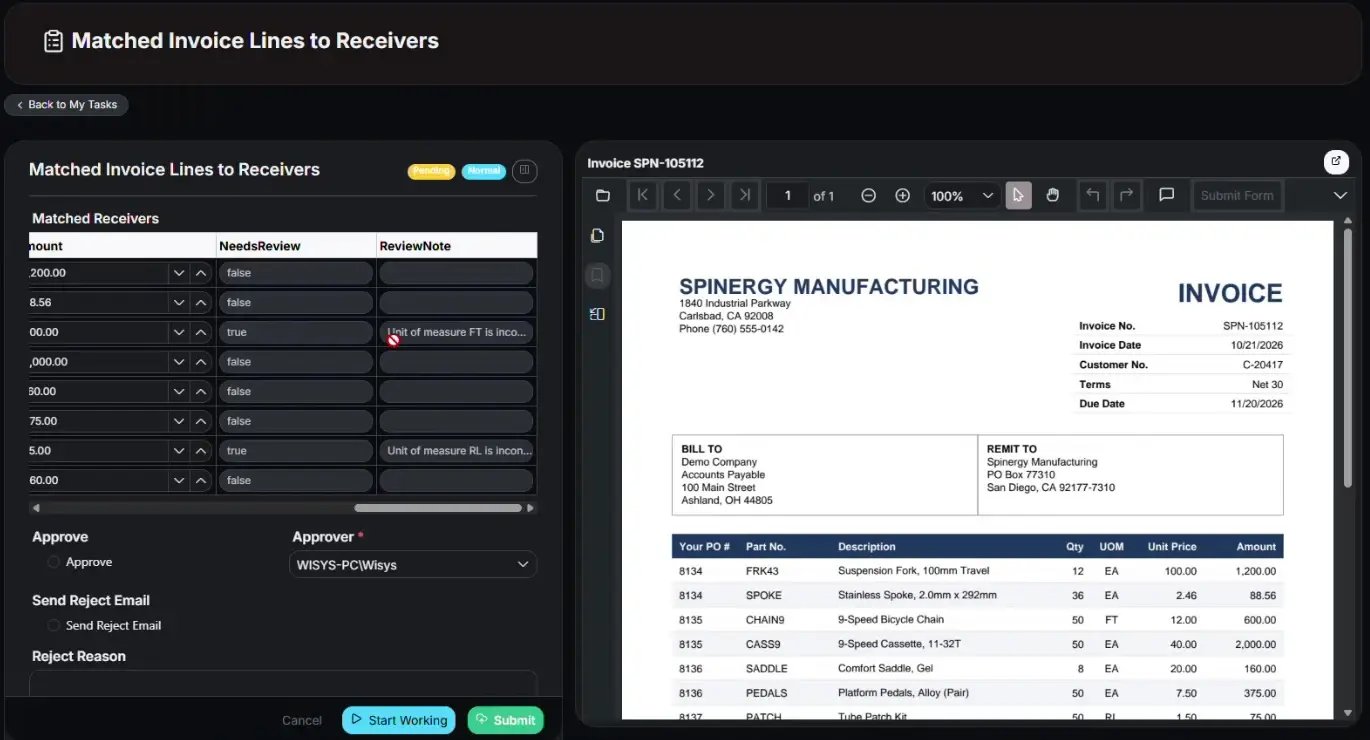
The approval task: matched lines beside the invoice. Demo data.
Built Around Your AP Process
Every company matches invoices a little differently, so this is set up with your team, not switched on.
A Template for Each Vendor Layout
AI Interpreter learns where to find the PO number, lines, quantities, and prices on each vendor's invoice, so start with the vendors you get the most invoices from.
Connected to Your Macola
The workflow reads receivers and creates the voucher through database connections and API calls, with no separate system of record to keep in sync. It works with Macola 10, Macola ES, and Macola Progression.
Rules That Match How You Work
Decide who approves, how price and quantity differences are handled, and what extra checks run first. Add or change a step later without starting over.
Not sure where to start? The Agility Intelligence team can help you build your first workflow.
More From AI Automation for Macola
Your Clients Keep Asking About Vouchering
AP matching comes up in nearly every Macola conversation. This workflow gives you something specific to show: an invoice read, matched to its receivers, approved by a person, and vouchered in Macola.
Frequently Asked Questions
Can Macola match vendor invoices to purchase orders and receipts automatically?
Macola has its own tools for entering and matching vouchers, and AI Automation works alongside them, on Macola 10, Macola ES, and Macola Progression, to take the manual lookup out of the job. In the workflow shown on this page, a vendor invoice arrives, AI Interpreter reads it, and the workflow looks up the matching purchase orders and receipts in Macola. It compares quantities and prices line by line, and an AI review step flags anything that doesn't add up, such as a unit of measure that doesn't line up with the rest of the invoice. A person then reviews the matched lines next to the invoice and approves them. Only after that approval does the workflow create the batch and voucher in Macola and email the original sender a confirmation. Every run is logged step by step. The matching and checks are described by your team, so they follow your own AP process.
Can it voucher one invoice against several receivers?
Yes. This is the part that makes AP matching slow by hand, and the workflow was built around it. A single invoice line is often received in more than one pass, for example when an item needs inspection and part of the quantity is released first and the rest later. In Macola that shows up as several receivers for the same purchase order line. In our demo, an invoice line for 12 units was received as 5 and then 7, and the workflow found both receivers and vouchered the line against each one. Across the whole demo invoice, eight invoice lines across four purchase orders matched to nine receivers. Nobody had to hunt down each receiver and add it to the voucher by hand. The person approving sees the invoice and the matched receivers side by side, so the match is easy to confirm.
Does anyone review the match before a voucher is created?
Yes. In the workflow shown here, every invoice goes to a person before anything is vouchered. The approver sees the invoice on one side and the matched lines on the other, along with any notes from the AI review. They can approve it as it is, edit a quantity or price if the vendor invoiced something you don't want to pay, or reject it and give a reason, which sends a rejection email. Only an approval moves the workflow on to create the batch and voucher in Macola. Because every response is recorded with who gave it and when, you have a clear history of decisions. Your team can tailor the rules around this step too, for example sending invoices with an unusually large variance to a different person, or adding another check, such as an account hold, before the invoice is matched.
How do vendor invoices get into the workflow?
A workflow starts when something happens, and for AP that is usually an invoice arriving. In the demo, the workflow watches a folder, and an invoice dropped into it starts a run straight away. The same workflow can watch a mailbox instead, so a vendor invoice that arrives as an email attachment starts the run without anyone forwarding it or saving it first. AI Automation can connect to outside systems as well, including Microsoft 365 mailboxes and SMTP email servers, as well as to your Macola data through database connections and API calls. You can have more than one workflow listening to the same mailbox if you need to. Once the invoice is picked up, AI Interpreter reads it and the rest of the steps run on their own until a person is needed for the approval.
What does it take to set up AP voucher automation in Macola?
It isn't an out-of-the-box switch, and it shouldn't be, because every AP process has its own rules. There are three parts to set up. First, AI Interpreter needs a template for how each vendor's invoice is laid out, so it knows where to find the PO number, lines, quantities, and prices. Second, the workflow needs connections to your Macola data, your mailbox or folder, and the Macola call that creates the voucher. Third, your team decides how matching should work for you, such as how price and quantity differences are handled and who approves. An IT staff member or power user builds it on a visual canvas, and the Agility Intelligence team can guide the first one. Starting with your highest-volume vendors is a practical way to begin. Many teams build the first workflow with guidance, then take it from there.
Is AI Automation included with Agility Intelligence?
AI Automation is licensed separately from Agility Intelligence's core AI products: AI Agent, AI Interpreter, AI Packing, and AI Fusion Production Scheduler. It's a complete workflow platform in its own right, with its own visual designer, execution engine, run history, and administration tools, which is why it's priced and packaged as its own product. You don't need any of the other products to use it, and many workflows don't involve AI at all. If you do use the others, AI Automation is how you connect them into larger processes, for example running AI Interpreter on a vendor invoice and then creating the voucher in Macola. Pricing depends on your environment and how many workflows or engine instances you need, so the most accurate answer comes from a short conversation with the team about your Macola AP process.
See Your AP Process as a Workflow
Tell us how your team matches invoices today. We'll show you what it looks like automated in Macola.